
Introduction
Our Xero online integration module gives you the ability to post invoices and payments from the Evolution FMS Funeral Management Solution directly into Xero accounts.
Which versions of Xero are supported
What do I need to do before I can use accounts integration?
Evolution FMS – General Settings
Click here and follow the instructions on this page
Nominal Codes / Chart of Accounts
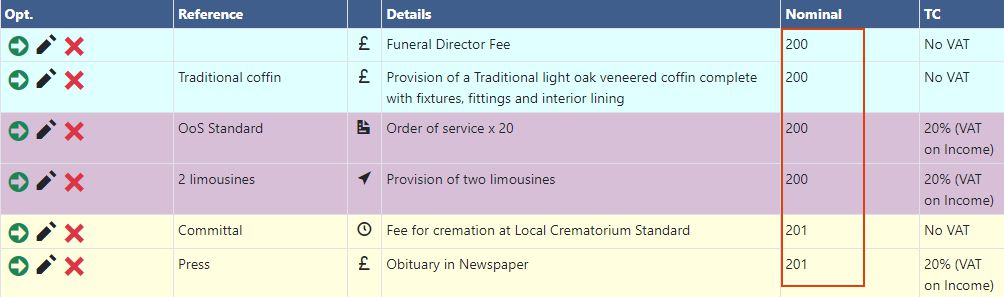
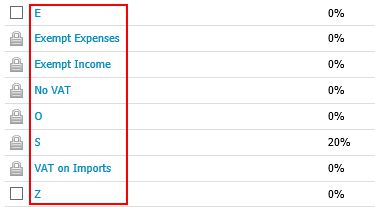
All of your service items within Evolution FMS needs to be assigned a NOMINAL and TAX CODE so that they can be accepted by your accounting system.
To do this you will need to spend a little time settings everything up so that transactions are processed to the correct accounting categories.

Tax Codes / Rates

Bank Accounts

If you would like to send payments across to your accounting software then you will also need to assign a bank account to each payment as it is entered (or add defaults to payment methods).
- Login to Xero and go to Settings, Chart of accounts.
- Make a note of your bank accounts. We would recommend giving them short names so they are easy to enter (i.e. ‘Current’ for your current account etc.).
- Login to Evolution FMS Settings, Administration, Prices, payment methods and add the bank account code names to each and every item.
Overpayment from client
Xero will accept an overpayment but rather than allocate it to the Invoice. If a payment is higher than the outstanding invoice balance then any overpaid funds are allocated to the customer as a Credit. This can then be refunded from Xero.

To balance the invoice in Evolution FMS, after posting to Xero, create an additional payment for a negative amount and enter an @ symbol into the S field to prevent the credit posting to Xero (as you will handle the refund from Xero yourself).

Creating a credit note / refund
If the customer hasn’t overpaid but you are refunding money to them them leave the invoice with the full sales figures and any payments received. Post these to Xero.

Enter a negative payment to reflect the refund and when next posting Payments to Xero a Credit Note will be created.
You will also need to enter a negative sales line to balance your sales (this will not be posted to Xero). To add this line you will need to press the traffic light to make it go Red & Green and once enter press it again to change it back to Red.

Branch Tracking / Tracking Categories
If you create a tracking category by navigating to Accounting, Advanced, Tracking Categories and name it Branch and then create options which match your Branch Names or Branch Numbers in Evolution FMS then your transactions will be categorised as they are posted across.

How does the process work
Any user with “Invoice Posting” permissions can post an invoice within Evolution FMS which will lock it from further editing.
A posted invoice will still allow payments to be taken and entered from customers, as well as finance / interest charges added.
Any user with “Invoice Unpost” permissions can unpost an invoice within Evolution FMS but this would mean that your accounts software would need tidying up manually.
When the invoice post routine is run the following actions are carried out:
- Invoices within Evolution FMS that have been posted but not accepted into Xero are loaded.
- The invoices are validated (NOMINAL CODES are checked against Xero ACCOUNTING CODES (i.e. 200, 201) and TAX CODES are also validated.
- If validation is successful then:
- A customer is created within Xero and will be called “Evolution FMS”
- The invoice is posted to the “Evolution FMS” account.
- The invoice number is returned to Evolution FMS where it is saved for reference
- Payments within Evolution FMS that have been created but not accepted into Xero are loaded
- Payments are posted to the corresponding invoice, as long as:
- The payment amount is not 0.00 or a negative amount
- The payment amount is not greater than the invoice outstanding balance
- The payment NOMINAL CODE matches a BANK ACCOUNT (up-to the first 25 characters of the bank account CODE or NAME).
Payment and optional and do not have to be posted across to Xero should you wish to do this manually.
How is the Xero Module Licensed?
The integration module is included in Evolution FMS Anywhere at no additional cost.